前言
opencode-notifier 是一个 OpenCode 插件,可以在以下情况发送桌面通知和播放声音提示:
- 🔔 需要权限时
- ✅ 会话完成时
- ❌ 发生错误时
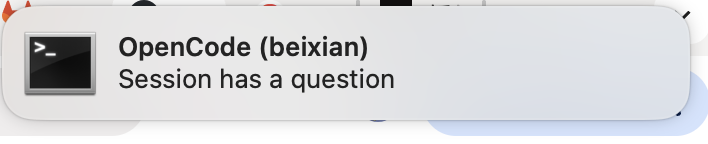
- ❓ 有问题需要回答时
这样你就可以在 OpenCode 运行任务时离开电脑,等任务完成或需要你介入时收到通知。本文记录在 macOS 上配置 opencode-notifier 的完整过程和遇到的问题。
快速开始
1. 安装插件
编辑 ~/.config/opencode/opencode.json,添加插件配置:
1
2
3
| {
"plugin": ["@mohak34/opencode-notifier@latest"]
}
|
2. 创建配置文件
创建 ~/.config/opencode/opencode-notifier.json:
1
2
3
4
5
6
7
8
9
10
11
12
13
14
15
16
17
18
| {
"sound": true,
"notification": true,
"timeout": 5,
"showProjectName": true,
"showSessionTitle": false,
"showIcon": true,
"suppressWhenFocused": true,
"notificationSystem": "osascript",
"events": {
"permission": { "sound": true, "notification": true },
"complete": { "sound": true, "notification": true },
"error": { "sound": true, "notification": true },
"question": { "sound": true, "notification": true },
"subagent_complete": { "sound": false, "notification": false },
"user_cancelled": { "sound": false, "notification": false }
}
}
|
3. 重启 OpenCode
重启后插件即可生效。
遇到的问题
问题1: 没有收到通知和声音
按照上述配置后,发现没有任何通知和声音提示。
原因排查:
经过测试发现,通知和声音都没有触发,可能是以下原因:
- macOS 通知权限没有开启
- 插件配置有问题
suppressWhenFocused 设置的影响
问题2: osascript 通知权限未开启
macOS 默认使用 osascript 发送通知,但 Script Editor 的通知权限默认是关闭的。
解决方案:
- 打开 Script Editor 应用(脚本编辑器)
- 在 Script Editor 中运行以下 AppleScript:
1
| display notification "测试通知" with title "Script Editor 测试"
|
- 打开 系统设置 → 通知
- 在列表中找到 “脚本编辑器” 或 “Script Editor”
- 开启通知权限,设置为”横幅”或”提醒”
问题3: suppressWhenFocused 设置的影响
发现一个重要问题:suppressWhenFocused: true 会检测终端是否是活动窗口。当你正在使用终端时,它会认为你已经在看屏幕了,所以不发送通知。
解决方案:
修改配置文件:
1
2
3
| {
"suppressWhenFocused": false
}
|
这样无论终端是否活动窗口,都会发送通知。
问题4: 切换通知系统
macOS 支持两种通知系统:
osascript(默认)
- 优点:更可靠
- 缺点:显示 Script Editor 图标,需要手动开启权限
node-notifier
- 优点:显示 OpenCode 图标,开箱即用
- 缺点:偶尔可能丢失通知
切换方法:
修改配置文件中的 notificationSystem:
1
2
3
| {
"notificationSystem": "node-notifier"
}
|
完整配置详解
基本配置
1
2
3
4
5
6
7
8
9
10
| {
"sound": true,
"notification": true,
"timeout": 5,
"showProjectName": true,
"showSessionTitle": false,
"showIcon": true,
"suppressWhenFocused": false,
"notificationSystem": "osascript"
}
|
事件配置
控制每种事件是否触发通知和声音:
1
2
3
4
5
6
7
8
9
10
| {
"events": {
"permission": { "sound": true, "notification": true },
"complete": { "sound": true, "notification": true },
"error": { "sound": true, "notification": true },
"question": { "sound": true, "notification": true },
"subagent_complete": { "sound": false, "notification": false },
"user_cancelled": { "sound": false, "notification": false }
}
}
|
自定义消息
可以自定义每种事件的通知消息:
1
2
3
4
5
6
7
8
| {
"messages": {
"permission": "Session needs permission: {sessionTitle}",
"complete": "Session has finished: {sessionTitle}",
"error": "Session encountered an error: {sessionTitle}",
"question": "Session has a question: {sessionTitle}"
}
}
|
支持以下占位符:
{sessionTitle} - 会话标题{agentName} - 子代理名称{projectName} - 项目名称{timestamp} - 时间戳{turn} - 通知计数
自定义声音
可以使用自己的声音文件:
1
2
3
4
5
6
7
8
| {
"sounds": {
"permission": "/path/to/alert.wav",
"complete": "/path/to/done.wav",
"error": "/path/to/error.wav",
"question": "/path/to/question.wav"
}
}
|
注意:
- macOS/Linux:支持 .wav 或 .mp3
- Windows:仅支持 .wav
测试配置
配置完成后,可以通过以下方式测试:
- 测试 question 事件:让 OpenCode 问你一个问题,看是否收到通知和声音
- 测试 complete 事件:完成一次对话,检查是否收到完成通知
- 测试权限请求:触发一个需要权限的操作
最终推荐配置
1
2
3
4
5
6
7
8
9
10
11
12
13
14
15
16
17
18
| {
"sound": true,
"notification": true,
"timeout": 5,
"showProjectName": true,
"showSessionTitle": false,
"showIcon": true,
"suppressWhenFocused": false,
"notificationSystem": "osascript",
"events": {
"permission": { "sound": true, "notification": true },
"complete": { "sound": true, "notification": true },
"error": { "sound": true, "notification": true },
"question": { "sound": true, "notification": true },
"subagent_complete": { "sound": false, "notification": false },
"user_cancelled": { "sound": false, "notification": false }
}
}
|
注意事项
- 通知权限:确保在 macOS 系统设置中开启了 Script Editor 的通知权限
- suppressWhenFocused:如果设置为
true,当你在使用终端时不会收到通知
- 通知图标:使用 osascript 会显示 Script Editor 图标,这是正常的
- 占位符限制:opencode-notifier 只能显示会话的元数据,无法显示问题的具体内容
总结
opencode-notifier 是一个非常实用的 OpenCode 插件,可以让你在长时间任务运行时不必一直盯着终端。配置过程虽然有一些坑(特别是通知权限和 suppressWhenFocused 设置),但配置好后工作非常稳定。
主要要点:
- ✅ 记得在系统设置中开启 Script Editor 的通知权限
- ✅ 根据需要设置
suppressWhenFocused
- ✅ osascript 比 node-notifier 更可靠,但显示的是 Script Editor 图标
- ✅ 可以自定义声音和消息内容
参考资料